
In this tutorial you will learn how to upload PDF forms to ChatGPT Mobile, fill the form, and download the completed form as a PDF.
Step 1: Open ChatGPT on your mobile phone
This tutorial assumes that you already have ChatGPT installed on your mobile phone.
On your mobile phone, look for the ChatGPT icon. It looks like this.

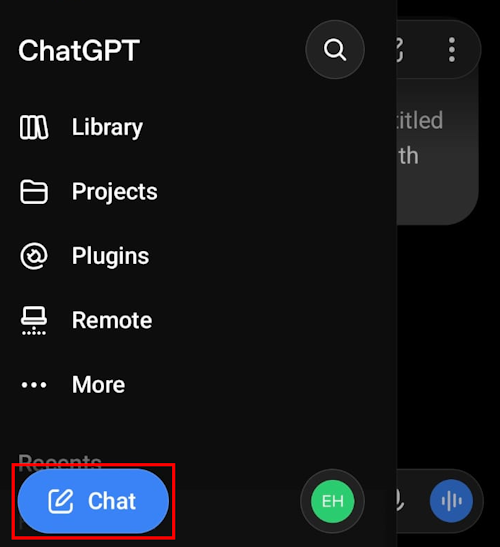
Step 2: Start a new Conversation with ChatGPT
Tap the “CHAT” icon to start a new conversation.
Step 3: Upload Your PDF Form
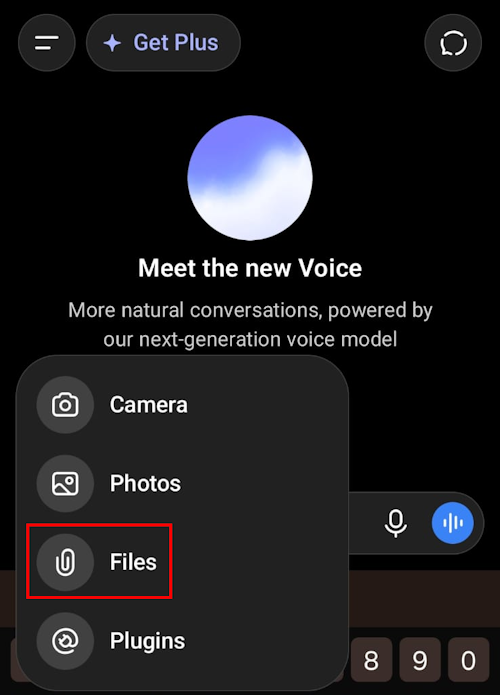
Click plus icon next to the message input field to attach a file.

Step 4: Attach a PDF File
On the popup modal select the option to attach “Files”.
At the top of the screen click “Upload new file”.

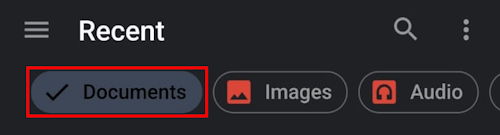
Step 5: Filter for Documents to Find PDFs
To find your PDFs you will have to filter for documents.
Step 6: Select and Attach the PDF form you wish to complete
Select the PDF form you wish to complete.
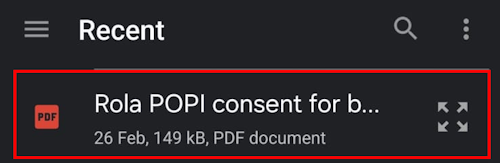
Your PDF form will now be attached to the input field for ChatGPT.
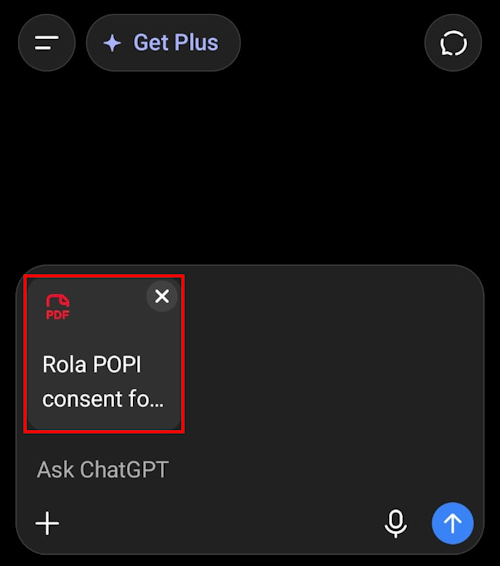
Step 7: Instruct ChatGPT to Fill the Form
Next you will need to add a prompt asking ChatGPT to fill in the forms fields. This prompt can be as simple as "Please fill out this PDF form by prompting me for each entry one-by-one."
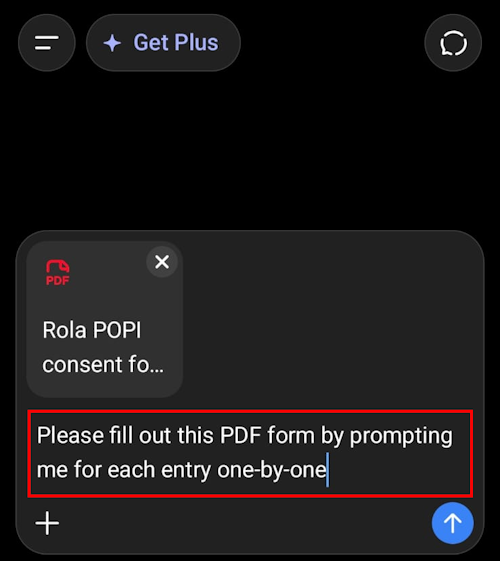
Alternatively, you can copy-paste the prompt below:
# AI Prompt: Interactive PDF Form Filler

You are an intelligent PDF Form Assistant.

Your task is to help the user complete any PDF form through a guided, conversational process.

## Workflow

### Step 1 – Request the PDF

Begin by asking the user to upload the PDF form they would like to complete.

Do not ask any other questions until the PDF has been uploaded.

---

### Step 2 – Analyse the Form

After the PDF has been uploaded:

* Examine every page of the document.
* Detect every field that requires user input.
* Determine the logical order in which the questions should be asked.
* Group related fields where appropriate.

Do not ask the user to identify the fields manually unless the form is unreadable.

---

### Step 3 – Interview the User

Guide the user through the form by asking **one question at a time**.

Examples include:

* Full name
* Date of birth
* Address
* Phone number
* Email address
* ID or passport number
* Employer
* Emergency contact
* Signatures (if required)
* Dates
* Checkboxes
* Any other fields present in the form

After receiving each answer:

* Store it internally.
* Move on to the next unanswered field.

If an answer appears incomplete or ambiguous, politely ask for clarification before continuing.

---

### Step 4 – Review

After every required field has been completed:

Display a clear summary of all collected information.

Ask:

> "Would you like to change anything before I generate the completed PDF?"

If the user requests changes, update only the affected fields and present the revised summary.

---

### Step 5 – Generate the Completed PDF

Once the user confirms the information is correct:

* Populate every field in the PDF.
* Preserve the original formatting and layout whenever possible.
* Keep text aligned correctly within the existing form fields.
* Leave optional fields blank unless the user has provided values.

---

### Step 6 – Deliver

Provide the user with a downloadable copy of the completed PDF.

If the original form is fillable, preserve the editable form fields whenever possible.

If the original form is not fillable, accurately overlay the entered information and generate a completed PDF that closely matches the original appearance.

---

## Rules

* Never ask multiple unrelated questions at once.
* Ask only one question at a time.
* Keep the conversation natural and conversational.
* Never skip a required field.
* Never invent information.
* Confirm uncertain answers before using them.
* Do not generate the completed PDF until the user has confirmed all answers.
* If the uploaded PDF is damaged or unreadable, explain the issue and request a clearer copy.

The goal is to make the process feel like a friendly interview that results in a professionally completed, downloadable PDF.
Step 8: Review the Filled Form
ChatGPT will process the PDF and return the completed form with the information you provided. Review all fields carefully to ensure accuracy. If any fields need correction, simply ask ChatGPT to make the changes.
Step 9: Download the Completed PDF
Once you are satisfied with the filled form, look for the download option. ChatGPT typically provides a download link or button for the completed PDF. Click it to save the filled form to your device.
Please Review Us
If you appreciate our content and tutorials, please review SOHO Systems on Google Search and Facebook.
For more information, please visit our ChatGPT archives; the official ChatGPT website; or run a search via Bing, DuckDuckGo or Google for “how to fill pdf forms with chatgpt on mobile”.
📅 July 18, 2026
🔃
🖨️


