
How to Edit PDFs with PDFgear on Mobile
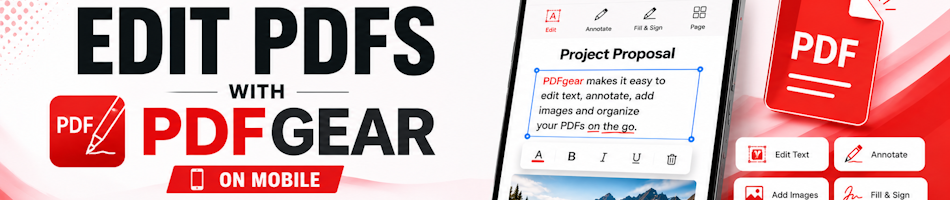
PDFgear is a fully free PDF editor available for both iOS (iPhone and iPad) and Android smartphones and tablets. Unlike many PDF apps that lock core features behind a subscription, PDFgear provides a comprehensive suite of editing tools with no watermarks, no page limits, and no hidden fees. (PDFgear, n.d.)
This tutorial walks you through the key features of PDFgear on mobile, and how to use them to edit, annotate, sign, and convert PDF documents directly from your smartphone.
Step 1: Download and Install PDFgear
PDFgear is available free of charge from the Apple App Store for iPhone and iPad, and from Google Play for Android devices.
Open the App Store or Google Play on your device, search for PDFgear, and tap Install. Once installed, open the app and grant any requested permissions to access files on your device.
Step 2: Open a PDF Document
From the PDFgear home screen, tap Open or the + button to browse for a PDF stored on your device, in your cloud storage (Google Drive, iCloud, Dropbox), or received via email. You can also tap Recent to re-open a previously edited file.
Step 3: Edit Text in the PDF
To edit existing text, tap the Edit tool in the toolbar at the top of the screen. Tap on any text block in the document to select it. You can then modify the text content, and adjust the font style, size, and colour using the formatting options that appear.
To add new text to the document, tap Add Text and tap anywhere on the page to place a new text box. Type your content, then drag the text box to the desired position.
Step 4: Annotate the Document
PDFgear provides a full set of annotation tools accessible from the toolbar. You can highlight text in yellow or other colours by selecting the Highlight tool, then dragging across the text you wish to mark.
Other annotation options include underline, strikethrough, sticky notes, and freehand drawing. To add a sticky note, tap the Note icon, tap the location on the page, and type your comment. Tap outside the note to close it.
You can also insert shapes such as rectangles, circles, arrows, and lines using the Shapes tool, which is useful for marking up technical diagrams or forms.
Step 5: Insert or Remove Images
To insert an image, tap the Image tool from the editing toolbar and select a photo from your device gallery or camera. Once inserted, you can resize and reposition the image by dragging the corner handles.
To remove an existing image from the PDF, tap on the image to select it, then tap the Delete icon that appears.
Step 6: Manage Pages
PDFgear includes a page management panel that allows you to reorganise your document. Tap the Pages icon to open the page thumbnail view.
From here, you can reorder pages by pressing and holding a thumbnail and dragging it to a new position. You can also rotate individual pages, delete unwanted pages, or extract specific pages to create a new document.
Step 7: Fill in Forms and Add a Signature
If the PDF contains form fields, PDFgear will automatically detect them. Tap any form field to activate it and type your response using the on-screen keyboard. Checkboxes and radio buttons can be toggled with a single tap.
To sign the document, tap the Signature tool and choose how you would like to create your signature. You can draw your signature with your finger, type it using a stylised font, or upload a photo of your written signature from your camera roll.
Step 8: Convert the PDF
PDFgear can convert PDF files to and from several formats. To convert a PDF, tap the Convert option from the tools menu. Supported output formats include Microsoft Word (.docx), Microsoft Excel (.xlsx), Microsoft PowerPoint (.pptx), and image formats such as JPG and PNG.
You can also create a new PDF from a Word document, image, or other supported file by tapping Create PDF from the home screen.
Step 9: Compress and Save
If you need to reduce the file size of a PDF before sending it, tap the Compress tool and choose a compression level. PDFgear will reduce the file size while attempting to preserve visual quality.
To save your edited document, tap the Save or Done button. You can save the file back to its original location or export it to a different folder, cloud storage service, or share it directly via email or messaging apps.
PDFgear Copilot (AI Assistant)
PDFgear includes an integrated AI assistant called PDFgear Copilot. You can use natural language to interact with your document — for example, asking the AI to summarise the contents of a long report, answer questions about the document, or perform actions like rotating pages or printing. (PDFgear, n.d.)
Please Review Us
If you appreciate our content and tutorials, please review SOHO Systems on Google Search and Facebook.
References
PDFgear. (n.d.). PDFgear — Free PDF Editor & Reader for Desktop and Mobile. https://www.pdfgear.com/
PDFgear. (n.d.). PDFgear Mobile — Edit PDFs on iPhone & Android. https://www.pdfgear.com/mobile/
For more information, please visit our PDFgear archives; the official PDFgear website; or run a search via Bing, DuckDuckGo or Google for “pdfgear edit pdf mobile”.
📅 July 12, 2026
🔃
🖨️


