
How to rip audio CDs to MP3 with Windows Media Player 11

In this tutorial you will learn how to use the new Windows Media Player 11 to rip audio CDs to MP3 format.
This functionality was reintroduced in a 2022 update (Windows Media Player, 2025)
Open Windows Media Player 11.
Insert the audio CD you want to rip into your CD drive.
Click the "Audio CD" option in the left-hand toolbar.
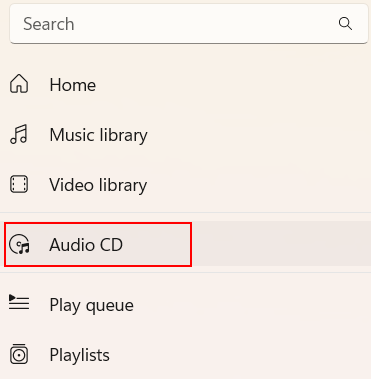
You should now see the tracks from the audio CD listed in the main window.
Click the "Rip Settings" button in the main toolbar.

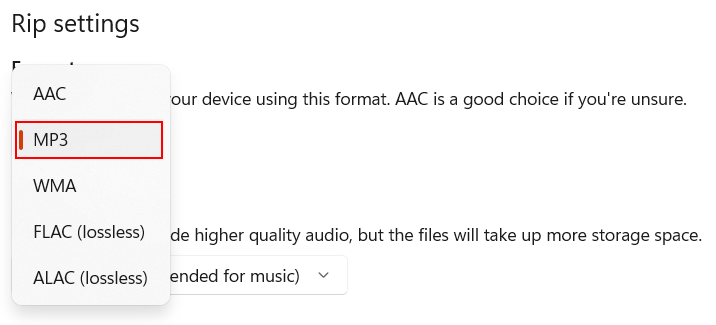
On the popup "Rip Settings" dialogue, select "MP3" from under "Format".

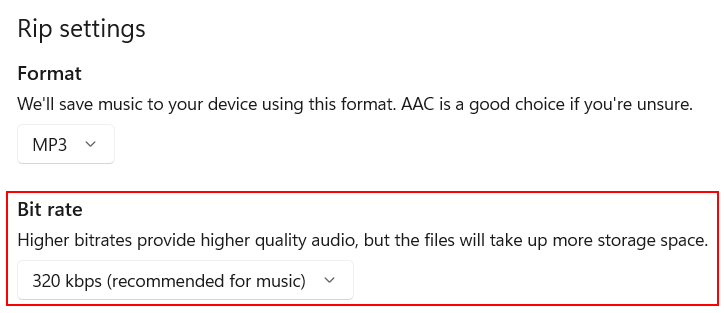
On the popup "Rip Settings" dialogue, select "320 kbps" from under "Bit rate".
Click the "SAVE" button to close the "Rip Settings" dialogue.

To rip your audio tracks to MP3, click the "Rip CD" button in the main toolbar.

Once the ripping process is complete, the ripped files will be automatically saved to your computer's "Music" folder, usually located at C:/Users/%USERNAME%/Music.
Please Review Us
If you appreciate our content and tutorials, please review SOHO Systems on Google Search and Facebook.
References
Microsoft Support (n.d.) Rip CDs and DVDs in Windows Media Player [Microsoft Support] https://support.microsoft.com/en-us/windows/rip-cds-and-dvds-in-windows-media-player-5c5c5c5c-5c5c-5c5c-5c5c-5c5c5c5c5c5c
Windows Media Player (2022) (2025, August 20) Windows Media Player (2022) [Wikipedia] https://en.wikipedia.org/wiki/Windows_Media_Player_(2022)
📅 2025-09-04
🔃
🖨️


