
Using the shrink to fit feature in Microsoft Word
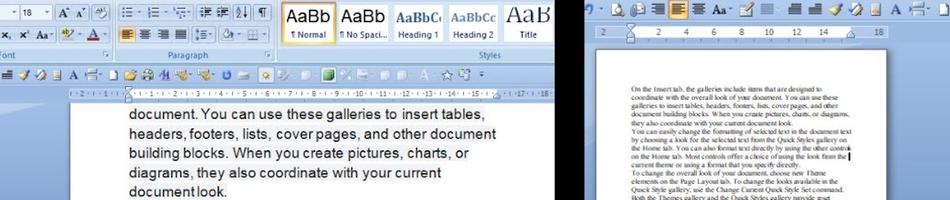
In this tutorial you will learn how to use the Shrink to Fit feature in Microsoft Word, which allows users to shrink lengthy documents to fit a desired number of pages when printed. (Computer Active, 2005); (Microsoft Support, n.d.a)
This feature is available in all versions of Microsoft Word since Word 95 (Computer Active, 2005), including Word 2021. (Microsoft Support, n.d.a)
Before we proceed, you will have to open [or create] a document that spans more than one page. (Computer Active, 2005); (Microsoft Support, n.d.a)
Once you have your document ready, follow the instructions below for your version of Microsoft Word.
Shrink to fit with Microsoft Word 95
Open Microsoft Word 95.
Single-left-click the "File" command menu and single-left-click "Print Preview". (Computer Active, 2005)
The screen will change to preview mode with a number of toolbar buttons across the top. (Computer Active, 2005)
Single-left-click on the "Shrink to Fit" button. (Computer Active, 2005)
Each click of the "Shrink to Fit" button will prompt Word 95 to attempt shrinking the document by one page. (Computer Active, 2005)
If you need to shrink the document still further, hit the "Shrink to Fit" button again. (Computer Active, 2005)
You can now print the document as usual.
While printing you may want to reverse the shrink operation so that you can continue editing the document in its original text size. (Computer Active, 2005)
Single-left-click the "Edit" command menu and select "Undo Shrink to Fit". (Computer Active, 2005) Alternatively, single-left-click the "Undo" button on the main toolbar. (Computer Active, 2005)
The "Undo Shrink to Fit" option will disappear from the "Edit" menu when it has been fully reversed. (Computer Active, 2005)
Single-left-click the "Close" button to finish previewing the document. (Computer Active, 2005)
Shrink to fit with Microsoft Word 2021
Open Microsoft Word 2021.
Before you can use Shrink to Page in Word 2021, you will first have to add the "Shrink One Page" command to the quick access toolbar [top left]. (Microsoft Support, n.d.a)
To do so, single-left-click the "Customize Quick Access Toolbar" drop-down and then "More Commands�"
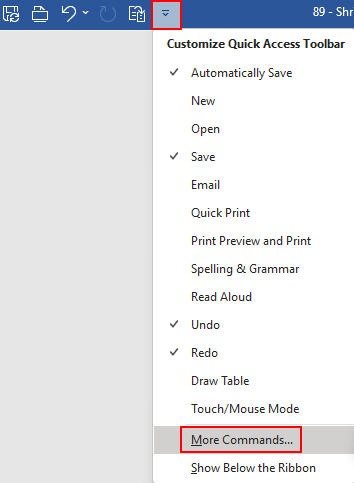
On the popup "Word Options" dialogue single-left-click "Quick Access Toolbar", and select "All Commands" from under the "Choose commands from:" drop-down menu. (Microsoft Support, n.d.a)
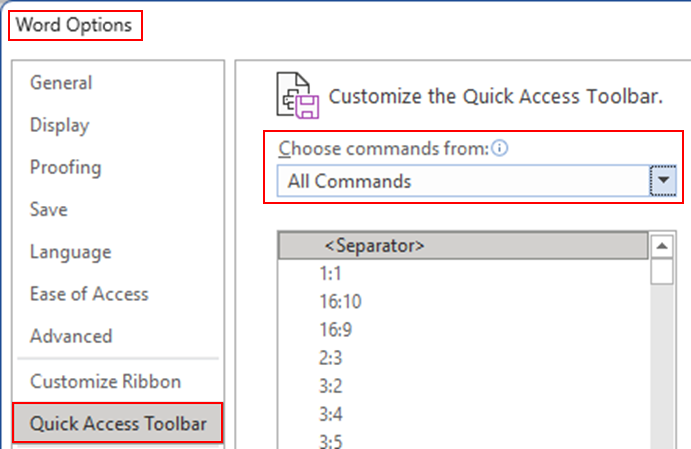
Within the left-hand pane single-left-click-select "Shrink One Page", then single-left-click the "Add >>" button. The "Shrink One Page" option will be moved to the right-hand pane. Single-left-click "OK" to close. (Microsoft Support, n.d.a)

The "Shrink One Page" option [icon or button] will now be available from your Quick Access Toolbar at the top left. (Microsoft Support, n.d.a)

With each click of the "Shrink to Fit" button Word 2021 will attempt to shrink the document by one page by reducing the size and spacing of the text. (Microsoft Support, n.d.a)
You can now print the document as usual.
While printing you may want to reverse the shrink operation by clicking the "Undo" option [icon or button] on the Quick Access Toolbar, or pressing Ctrl + Z repeatedly until the original document is restored. (Microsoft Support, n.d.a)
Please Review Us
If you appreciate our content and tutorials, please review SOHO Systems on Google Search and Facebook.
References
Computer Active (2005, February) The incredible shrinking document [Computer Active] https://www.computeractive.co.uk
Microsoft Support (n.d.a) Shrink text to fit [Microsoft Support] https://support.microsoft.com/en-us/office/shrink-text-to-fit-ad8ac9df-c641-4d57-876b-a099d0b9808e
📅 September 4, 2025
🔃
🖨️


