
Translating Emails in eM Client

eM Client includes a built-in translation feature that allows you to translate emails directly within the messages pane. This is particularly useful when corresponding with international contacts who write in different languages.
How It Works
When you receive an email in a foreign language, eM Client can detect the language and offer to translate it into your preferred language with a single click.
To translate an email manually, simply single-right-click within any message and look for the option in the pop-out command menu.
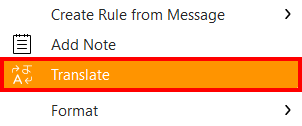
If the option is not available (or greyed out) within the right-click-menu, single-left-click the button on the overhead command menu.

Single-left-clicking will launch the pop-up Translate dialogue box.
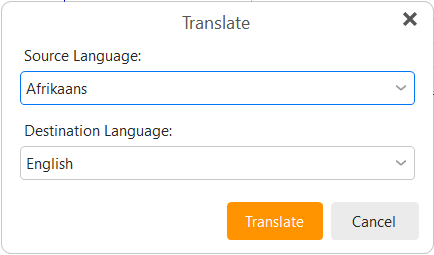
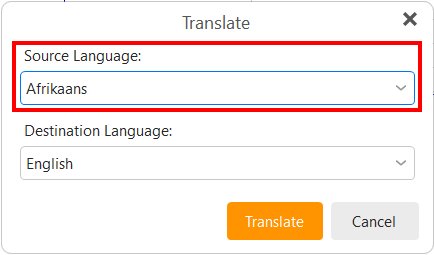
Under select the language of the original message you received (if not selected already).
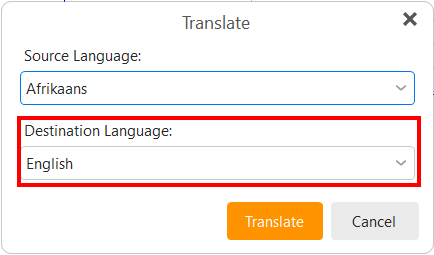
Under select the language in which you would like to read the message you received.
Within a second your message will be translated.
Supported Languages
eM Client supports translation between dozens of languages, including English, Afrikaans, Dutch, French, German, Spanish, Portuguese, Italian, Russian, Chinese, Japanese, and many more.
The translation engine leverages Microsoft Translator, ensuring accurate and context-aware translations.
Settings & Configuration
You can configure the translation feature in eM Client's settings. Navigate to Tools > Settings > Composition and look for the Translation section.
From there you can enable or disable automatic translation prompts, set your preferred target language, and choose whether to translate on demand or automatically.
Privacy Considerations
When using the translation feature, the email content is sent to Microsoft's translation servers for processing. Microsoft does not store your translated content. If you are handling sensitive information, you may want to disable automatic translation and translate on a case-by-case basis.
Please Review Us
If you appreciate our content and tutorials, please review SOHO Systems on Google Search and Facebook.
References
eM Client (2026) eM Client Translation Feature [eM Client Documentation] https://www.emclient.com/docs/em-client-translation-feature.pdf
For more information, please visit the official eM Client website; or run a Bing, DuckDuckGo, Google or YouTube search for "eM Client Translate".
📅 May 16, 2026
🔃
🖨️


