
Building a Database
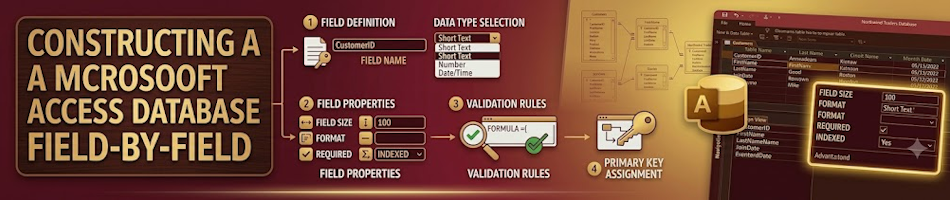
This subpage forms part of the Microsoft Access course.
For the sake of our exercise, we are going to create a MOVIE DATABASE, since “the best way to learn is to do” (Noome et al, 2014b).
Each record will consist of a Title, Director, Studio, Genre, Running Time, Year of Release, Website, and Seen or Unseen check-box.
How-To Create a new ‘Movies’ Table in MS Access 2016
Open or launch Microsoft Access, and single-left-click the “Blank desktop database” option.
Save your new database as Movies.accdb. You will automatically be taken to the ‘Datasheet View’ (Kench, 2015a), which will contain absolutely no records, since you haven’t added any yet.
Single-left-click on the ‘Create’ tab at the top of Microsoft Access.
Single-left-click ‘Table Design’ to access the ‘Table Design View’ where you will see the fields of the table.
Create ‘Title’ Field
In the first column, under ‘Field Name’, add ‘Title’. In the second column, under ‘Data Type’, select ‘Short Text’.
Create ‘Director’ Field
In the first column, under ‘Field Name’, add ‘Director’. In the second column, under ‘Data Type’, select ‘Short Text’.
Create ‘Studio’ Field
In the first column, under ‘Field Name’, add ‘Studio’. In the second column, under ‘Data Type’, select ‘Short Text’.
Create ‘Genre’ Field
In the first column, under ‘Field Name’, add ‘Genre’. In the second column, under ‘Data Type’, select ‘Short Text’.
Create ‘Running Time’ Field
In the first column, under ‘Field Name’, add ‘Running Time’. In the second column, under ‘Data Type’, select ‘Number’.
Create ‘Year of Release’ Field
In the first column, under ‘Field Name’, add ‘Year of Release’. In the second column, under ‘Data Type’, select ‘Number’. We could select ‘Date/Time’, but then you will have to be way more specific with the release date.
Create ‘Website’ Field
In the first column, under ‘Field Name’, add ‘Website’. In the second column, under ‘Data Type’, select ‘Hyperlink’.
Create ‘Seen’ Field
In the first column, under ‘Field Name’, add ‘Seen’. In the second column, under ‘Data Type’, select the Boolean data type, ‘Yes/No’.
Saving Your Progress
Single-left-click on the save icon. You will be prompted to save your table. Name it ‘MoviesT’1. If asked to add a ‘Primary Key’, select OK.
Rename the Primary Key to ‘MovieID’.
Now single-left-click on ‘View’ [top left], which will return you to the ‘Datasheet View’, where you may preview your database’s layout.
How-To Create a new ‘Studios’ Table in MS Access 2016
With the Movies table created, we now need a Studios table to store information about each movie studio. The Studios table will eventually be linked to the Movies table so that each movie can reference its studio.
Return to the ‘Create’ tab and single-left-click ‘Table Design’ once again to open a new blank table in Design View.
Create ‘Studio Name’ Field
In the first column, under ‘Field Name’, add ‘Studio Name’. In the second column, under ‘Data Type’, select ‘Short Text’.
Create ‘Country’ Field
In the first column, under ‘Field Name’, add ‘Country’. In the second column, under ‘Data Type’, select ‘Short Text’.
Create ‘Year Founded’ Field
In the first column, under ‘Field Name’, add ‘Year Founded’. In the second column, under ‘Data Type’, select ‘Number’.
Create ‘Founder’ Field
In the first column, under ‘Field Name’, add ‘Founder’. In the second column, under ‘Data Type’, select ‘Short Text’.
Create ‘Parent Company’ Field
In the first column, under ‘Field Name’, add ‘Parent Company’. In the second column, under ‘Data Type’, select ‘Short Text’. Not every studio has a parent company, so this field may be left blank for independent studios.
Create ‘Website’ Field
In the first column, under ‘Field Name’, add ‘Website’. In the second column, under ‘Data Type’, select ‘Hyperlink’.
Saving Your Progress
Single-left-click on the save icon. Name this table ‘StudiosT’2. If asked to add a ‘Primary Key’, select OK.
Rename the Primary Key to ‘StudioID’.
Single-left-click on ‘View’ [top left] to return to the ‘Datasheet View’ and preview the Studios table layout alongside your Movies table.
Footnotes
1. Some developers prefer the tbl prefix (Kench, 2015a), meaning their table will be called ‘tblMovies’. I personally prefer adding a capital T to the end of my table-names. ↩
2. Following the same naming convention as MoviesT, I have chosen StudiosT for consistency. ↩
Please Review Us
If you appreciate our content and tutorials, please review SOHO Systems on Google Search and Facebook.
References
Kench, D. (2015a). Exploring IT: Java Programming Grade 11: Learning Unit 8 Introduction to Databases and SQL (pp. 208–221). Funworks. http://www.funworks.co.za ✔️
Noome, C., Gibson, K., Macmillan, P., & Wassermann, U. (2014b, January). IT is gr8! @ Grade 11 Theory [CAPS edition]: Module 4.3 Introduction to Multi-Tables (pp. 146–170). Study Opportunities. http://www.studyopportunities.co.za ✔️
📅 June 4, 2026
🔃
🖨️


