
The Internal Structure of an Access Database

This subpage forms part of the Microsoft Access course.
Every Microsoft Access Database (MAD) “consists of data and tools to work with that data” (Rost, 2011b), namely a number of fields, records, tables, queries, forms, reports, macros, and modules. (Kench, 2015a, Rost, 2011a)
Fields
In Access the simplest component or “smallest unit of data” (Noome et al, 2014a) in a database is known as a “field”. (Kench, 2015a, Noome et al, 2014a)
Fields can contain names, surnames, titles, numbers, dates, or even strings of characters.
“Fields are sometimes referred to as ‘columns’” (Rost, 2011a), yet that distinction could be a little deceptive, since each horizontal row in an Access database also consists of various fields.

“In Access each field must have a data type associated with it just like a variable needs a type in a programming language.” (Kench, 2015a)
“The data type of a field depends on the characteristics of the data in the field.” (Noome et al, 2014a)
If you want to create a field for a name, surname, or number, like a telephone number, postal code, or year of release not used for calculations, you will need to set the field’s data type to “Text” (Noome et al, 2014a), or “Short Text” in Access 2013 and 2016.
If you want to create a field for a note, comment, or explanation, you will need to set the field’s data type to “Memo” (Noome et al, 2014a), or “Long Text” in Access 2013 and 2016.
If you want to create a field for “numbers where calculations need to be performed” (Noome et al, 2014a), you will need to set the field’s data type to “Number” (Noome et al, 2014a).
If you want to create a field for dates and times, you will need to set the field’s data type to “Date/Time” (Noome et al, 2014a).
If you want to create a field for monetary values, you will need to set the field’s data type to “Currency” (Noome et al, 2014a).
If you want to create a field for a boolean value like Yes or No, you will need to set the field’s data type to “Yes/No” (Noome et al, 2014a).
If you want to create a field for graphics, photos, video or documents, you will need to set the field’s data type to “OLE Object” (Noome et al, 2014a).
If you want to create a field for website addresses, that is a Universal Resource Locator (URL) to an online web page, email address, or document, you will need to set the field’s data type to “Hyperlink” (Noome et al, 2014a).
Finally, the sequential numbers automatically assigned to each new record are set as an “AutoNumber” (Noome et al, 2014a).
Records
“When many fields are grouped together, they form a record.” (Kench, 2015a)
In other words, “all of the data concerning one item is stored in a record” (Rost, 2011a), meaning “all the related fields containing data about one particular person will form a record.” (Kench, 2015a)
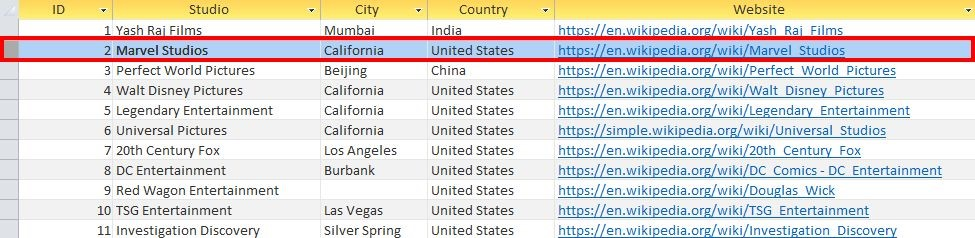
In a table-oriented database, each horizontal row represents a record.
In the words of Richard Rost, “You can think of a record like a row in an Excel spreadsheet.” (Rost, 2011a)
In the words of Delia Kench, “… think of a record as a list of your personal details at your school. All the information stored at the school about you is grouped together as a record. Each student record consists of many fields storing information about a student such as name, surname, grade, date of birth, address, subjects and marks.” (Kench, 2015a)
Tables
“In Access, the table forms the basis or nucleus of a database because it contains the data itself.” (Noome et al, 2014a)
In fact, “all data in your Access database is stored in one or more tables.” (Rost, 2011a)
“In Access related records are stored in a table” (Noome et al, 2014a), where “many records can be grouped together” (Kench, 2015a) and “every row has a primary key and every column has a unique name” (Noome et al, 2014b).
In the words of Richard Rost, “You can think of a table like a single Microsoft Excel spreadsheet. However, tables give you much more control over the types of data that can be input into them.” (Rost, 2011a)

Queries
“One of the most useful aspects of a database is to extract information according to specified criteria.” (Noome et al, 2014a), or “display only certain fields in a table” (Noome et al, 2014a).
In other words, queries allow you to “sort your data, or apply criteria to only view specific types of data.” (Rost, 2011a)
“You may [for example] have hundreds of thousands of records in your table” (Rost, 2011a), none of which was “stored in any particular order.” (Rost, 2011a)
Yet, you may be required to only provide the records of customers from a particular city or town.
That is where database queries are very useful.
“Queries can also be used to modify data.” (Rost, 2011a)
Most importantly, queries can be reused.
Reports
“Reports are specifically designed to present data to people who are not using your database.” (Rost, 2011a)
“You can [for example] print a report out, or send it to someone as an email-attachment.” (Rost, 2011a)
Reports are useful for printed customer records, invoices, product catalogues, mailing labels, charts, etc.
In short, “anything you want to present to someone else can be designed as a report.” (Rost, 2011a)
Forms
Forms provide a variety of GUI components like “drop-down lists” (Rost, 2011a) and “command-buttons” (Rost, 2011a), that “allow you to build a nice, user-friendly environment, to work with your data on the screen.”
“Whether you are building a database just for yourself, or for other people to work with, forms are a major timesaver” (Rost, 2011a), because:
Forms allow you to “display data more attractively and professionally than a table” (Noome et al, 2014a).
Forms allow you to “include just the types of data you want your users to work with.” (Rost, 2011a)
Forms allow you to “combine information from multiple tables.” (Rost, 2011a)
Forms allow you to “secure your fields, so that users can only modify specific data.” (Rost, 2011a)
Forms allow you to “display calculations on your forms” (Rost, 2011a). For example, invoices.
“You never want other users to have to work directly with your tables and queries.” (Rost, 2011a)
Macros
“Macros are generally used to automate repetitive tasks, or carry out simple actions.” (Rost, 2011a)
Modules
“Modules contain Visual Basic programming code that can really take your database to a professional level.” (Rost, 2011a)
In summary, “a field stores a single data item … a record is a collection of fields … a table is a collection of records [and] a database is a collection of tables.” (Kench, 2015a)
Please Review Us
If you appreciate our content and tutorials, please review SOHO Systems on Google Search and Facebook.
References
Kench, D. (2015a). Exploring IT: Java Programming Grade 11: Learning Unit 8 Introduction to Databases and SQL (pp. 208?221). Funworks. http://www.funworks.co.za
Noome, C., Gibson, K., Macmillan, P., & Wassermann, U. (2014a, January). IT is gr8! @ Grade 11 Theory [CAPS edition]: Module 4.1 Introduction to databases (pp. 122?138). Study Opportunities. http://www.studyopportunities.co.za
Noome, C., Gibson, K., Macmillan, P., & Wassermann, U. (2014b, January). IT is gr8! @ Grade 11 Theory [CAPS edition]: Module 4.3 Introduction to Multi-Tables (pp. 146?170). Study Opportunities. http://www.studyopportunities.co.za
Rost, R. (2011a, November 25). Microsoft Access 2010 Tutorial Part 01 of 12 ? Database Terminology [Video file]. PC Learning Zone/YouTube. https://www.youtube.com/watch?v=pHiOXZEbK-4
Rost, R. (2011b, November 25). Microsoft Access 2010 Tutorial Part 08 of 12 ? Sorting & Filtering [Video file]. PC Learning Zone/YouTube. https://www.youtube.com/watch?v=S--9bYRDxr8
📅 May 28, 2026
🔃
🖨️


